Use the Knowledge Q&A service to extract tags from every chunk of a document and write them back — an end-to-end pipeline from ingestion to tag-based retrieval
This guide uses the retrieval and generation capabilities of the Knowledge Q&A service to have an LLM read every chunk of a document, extract tags, and write them back to that document. The result is a repeatable end-to-end pipeline: ingest, auto-tag, retrieve by tag. Every step runs in the console.
Overview
Why auto-tag
Manual tagging breaks down in three ways:
- Tagging can't keep up with ingestion: When documents flow in as batches, human tagging lags far behind.
- Documents sit unusable until tagged: Tag-based retrieval and routing wait on the human step, delaying time-to-value.
- Tag definitions drift: Different annotators interpret categories differently, so similar documents end up with inconsistent tags and retrieval quality suffers.
When to use it
| Scenario | Description | What auto-tagging adds |
|---|---|---|
| Enterprise document management | Tag contracts, project materials, and technical docs with department, project, topic, and confidentiality level | Speeds up search, supports access control and compliance audits |
| Knowledge asset curation | Tag technical docs, research reports, and industry white papers with domain, tech stack, and use case | Turns scattered material into a structured library, enabling precise tag-based Q&A and recommendation |
| Marketing asset management | Tag product manuals, marketing plans, and case studies with product line, industry, and scenario | Locate relevant material quickly, filter and reuse by tag |
How it works
The Knowledge Q&A service is a RAG pipeline: retrieve chunks, then have the LLM answer based on those chunks. Swap the generation goal from "answer the question" to "extract tags" and you have auto-tagging. Give the target document a unique tag, use tag filtering to retrieve only chunks from that document, prompt the LLM to output tags, and write them back.
Three details make this work:
- Single-document recall: Model Studio's tag filter matches on
tags, not document ID. Adding a unique tag to the target document is what limits retrieval to that document. - Cover as much of the document as possible: Disable the rerank model and push recall count to the maximum so as many chunks as possible reach the LLM.
- Structured output: The prompt constrains the model to emit parseable tags that can be written back directly.
Walkthrough
This walkthrough uses the Model Studio docs sample bundle (92 official Model Studio technical documents). It tags First call to the Qwen API from the bundle, but any document of your own works too.
The following tags are written by the LLM — no need to create them in advance:
| Tag | Description | Example value |
|---|---|---|
| Product | The product this document covers | product_model-studio |
| Topic | Document topic | topic_api-call |
| Difficulty | Beginner / Intermediate / Expert | difficulty_beginner |
| Keyword | Document keywords (multi-value) | keyword_environment-variable, keyword_curl |
1. Create a Knowledge Base and upload documents
Go to Data Ingestion → Knowledge Management and click Create. Choose the Flagship edition — auto-tagging needs a higher recall quota than the standard edition provides. Then walk through the three-step wizard:
- Basic Information: Fill in the name and description. Set Knowledge Base type to Document Search and use case to Basic Document Q&A.
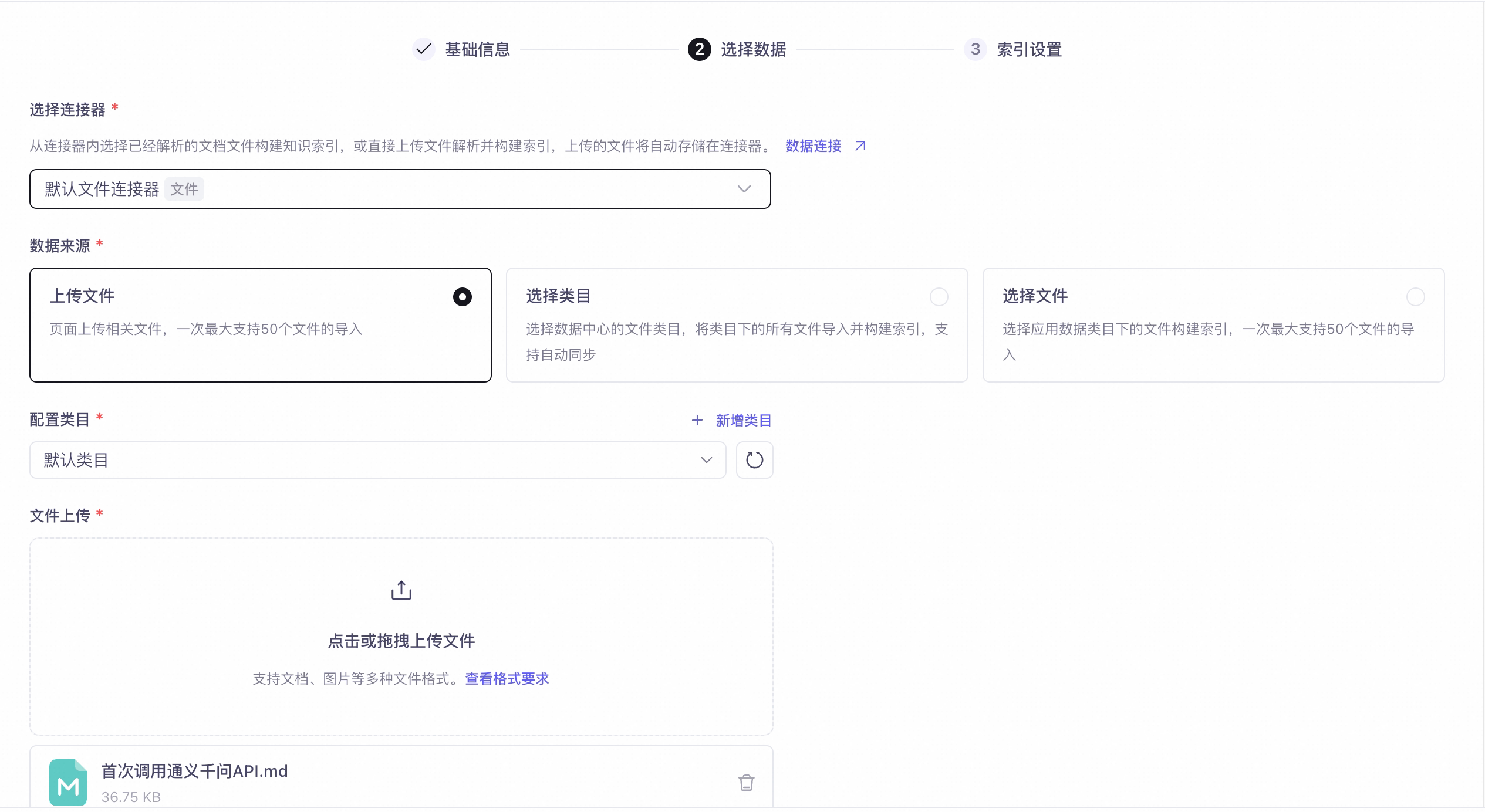
- Select Data: Choose a connector (the default File connector is fine), select Upload Files as the data source, configure the category, and upload the sample documents in the File Upload area.
- Index Settings: Keep the defaults and finish.
The Add Tag field at the bottom of the Select Data step applies to every file in this upload — it can't isolate a single document. The unique per-document tag is added separately in the next step. Tags are free text and don't need to be created in advance.
Select Data step of the create-KB wizard: connector, data source, category, file upload
2. Add a unique tag to the target document
Tag filtering is how you limit retrieval to a single document, so the target document needs a unique tag (for example auto_tag_temp):
- Console: In Data Ingestion → Knowledge Management, click View Details on the Knowledge Base you just created, open the document list, click More → Tags on the target document, enter
auto_tag_tempin the tag dialog, press Enter, and confirm. - API: Call
batchUpdateFileTagand set the document'stagsto["auto_tag_temp"].
3. Configure the Knowledge Q&A service
- Go to Knowledge Service → Knowledge Q&A, click Create, and bind the Knowledge Base from the previous step.
- Pick a generation model. Tag extraction demands strong comprehension and instruction-following, so choose a capable model such as
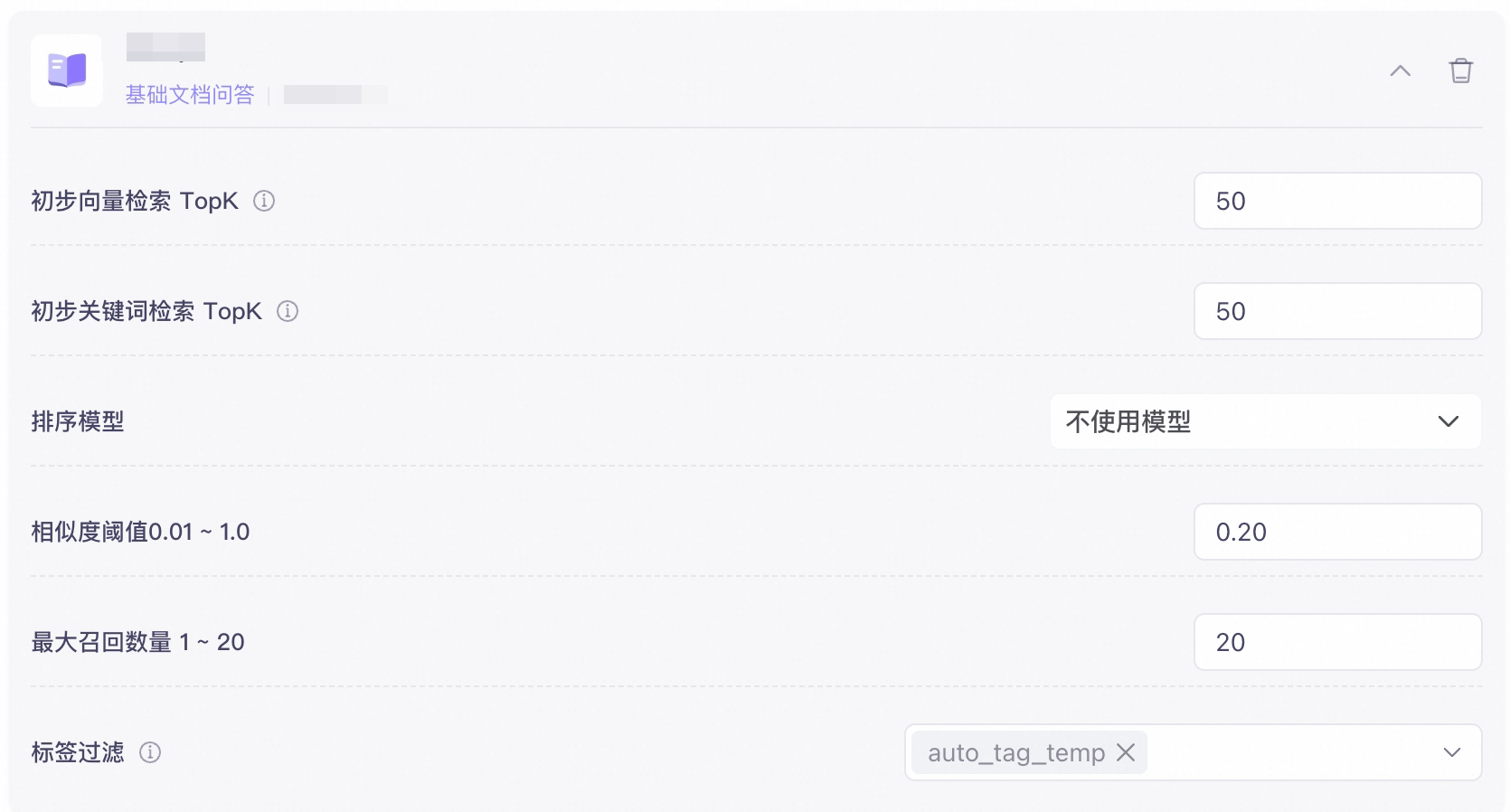
qwen3.7-plus. - Click Expand Knowledge Base Configuration and set retrieval parameters as follows:
| Parameter | Value | Why |
|---|---|---|
| Tag filter | Enter or pick the unique tag auto_tag_temp from the dropdown | Restricts recall to this document, enabling single-document tagging |
| Initial vector recall TopK | Increase to at least the document's chunk count (default 50) | Ensures the document's chunks are in the candidate pool |
| Initial keyword recall TopK | Increase to at least the document's chunk count (default 50) | Covers the keyword retrieval path as well |
| Rerank model | Select Do not use a model | Prevents rerank from filtering chunks by relevance |
| Max recall count | Push to the ceiling: 20 | Sends as many chunks as possible to the model |
Knowledge Base configuration: tag filter set to the unique tag, TopK increased, rerank disabled, max recall set to 20
4. Write the tagging prompt
In the Prompt input on the configuration page, fill in a tagging prompt template. Retrieved chunks are stitched together into context and injected automatically by the service, so no placeholder is needed in the prompt itself. The prompt tells the model to emit a ready-to-write fieldname_value tag array:
5. Run tagging in the console
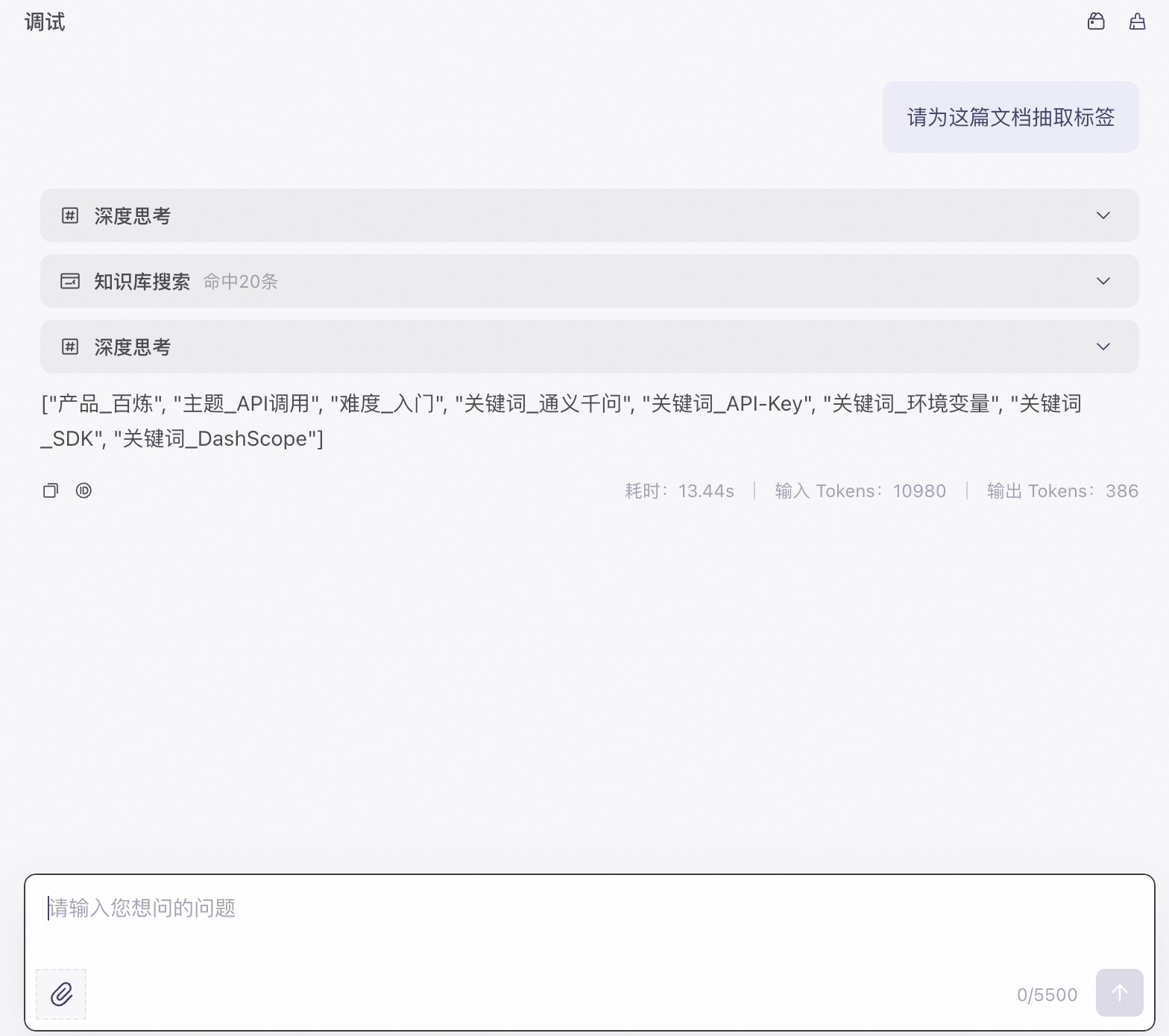
In the Debug panel on the right of the configuration page, enter a tagging instruction (for example Extract tags for this document), send it, and check whether the tag array matches expectations.
Debug panel: send a tagging instruction, model returns a tag array
agent_id), and drive tagging through the Knowledge Q&A API (the response is an SSE stream; see the API reference for parsing). Then write the tags back in the next step. For how to sequence tagging across documents in a batch, see Caveats.
6. Write tags back and retrieve by tag
Once you have the tag array from the model, call batchUpdateFileTag to write it back to the document. OVERWRITE replaces the temporary unique tag from Step 2:
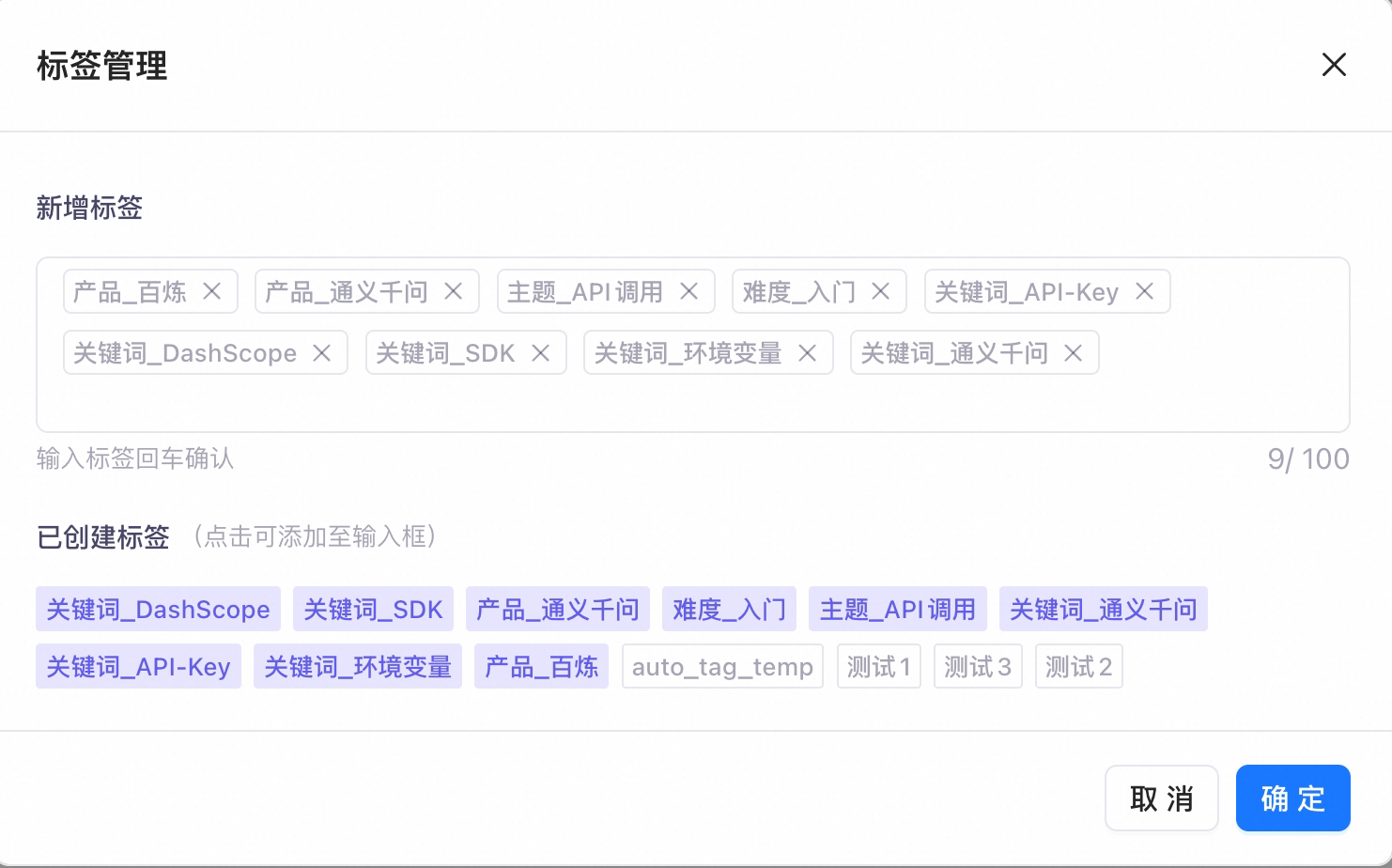
fileId from listFile, or update tags by hand in the console via More → Tags on the document row. After writing, set the corresponding tag in Knowledge Base Configuration → Tag Filter on the retrieval or Q&A service to filter recall by tag.
Document list shows the written tags; Knowledge Base configuration uses tag filter for precise recall
Caveats
Tags are a string array
Model Studio tags are a plain string array (no field-type concept). They may contain Chinese characters, letters, digits, underscore _, and hyphen - only — no colons, spaces, or other characters. Each tag is capped at 32 characters, and each document can have at most 100 tags. Use fieldname_value (for example product_model-studio) for typed tags, and split multi-value dimensions into multiple strings. Tags are free text and don't need to be created in advance.
Single-document recall depends on a unique tag
Model Studio retrieval and Q&A don't filter by document ID — tag filtering matches on tags. To tag a single document, add a unique tag (such as auto_tag_temp) to that document specifically. The Add Tag field in the Select Data step of the create-KB wizard applies to every file in the upload and can't isolate one document.
Bound by the max recall cap
Knowledge Q&A caps recall at 20 chunks per request — at most 20 chunks reach the model in one call. Documents with more than 20 chunks can't be covered in one pass and must be split or tagged in batches.
Tag filter is a service-level static config
The tag filter on a Q&A service is fixed once you publish and doesn't change per request. Two ways to tag many documents:
| Approach | How | When to use |
|---|---|---|
| Shared temporary unique tag | Add the same temporary tag (such as auto_tag_temp) to every document, tag them one by one, then overwrite with the business tags | Small batches, sequential tagging |
| Multiple services in parallel | Create a separate Q&A service per document (or per group), each with its own tag filter | Large-scale parallel tagging |
FAQ
Tagging results only cover part of the document?
Check that rerank is set to Do not use a model, and that initial retrieval TopK and max recall are both increased. If the document has more than 20 chunks, split it or tag in batches.
The model outputs extra text alongside the tag array?
Tighten the "output only the array" constraint in the prompt. Before writing back, extract only the first [...] array from the output and parse that.
Writing tags back returns an error?
Check for unsupported characters (colons, spaces, etc.) and verify no tag exceeds 32 characters.